Ethernet Connected But No Internet? How to Fix It
If your Ethernet shows connected but you have no internet, the cause is almost always one of three things: a broadband fault at your provider’s end, a failed handshake between your computer and the router (no valid IP address), or a broken DNS lookup. Start by checking whether the whole connection is down or just one device, then work through the steps below in order. Most people are back online within ten minutes.
First, narrow down where the fault is
A wired connection that says “connected” but carries no traffic is telling you the cable link is fine but something further up the chain is not. Before you change any settings, answer one question: is it only this computer, or is the whole house offline?
- Other devices work (phone on Wi-Fi loads pages): the problem is your computer’s network settings or the cable run. Skip to step 4.
- Nothing in the house can reach the internet: the problem is the router or your broadband line. Start at step 1.
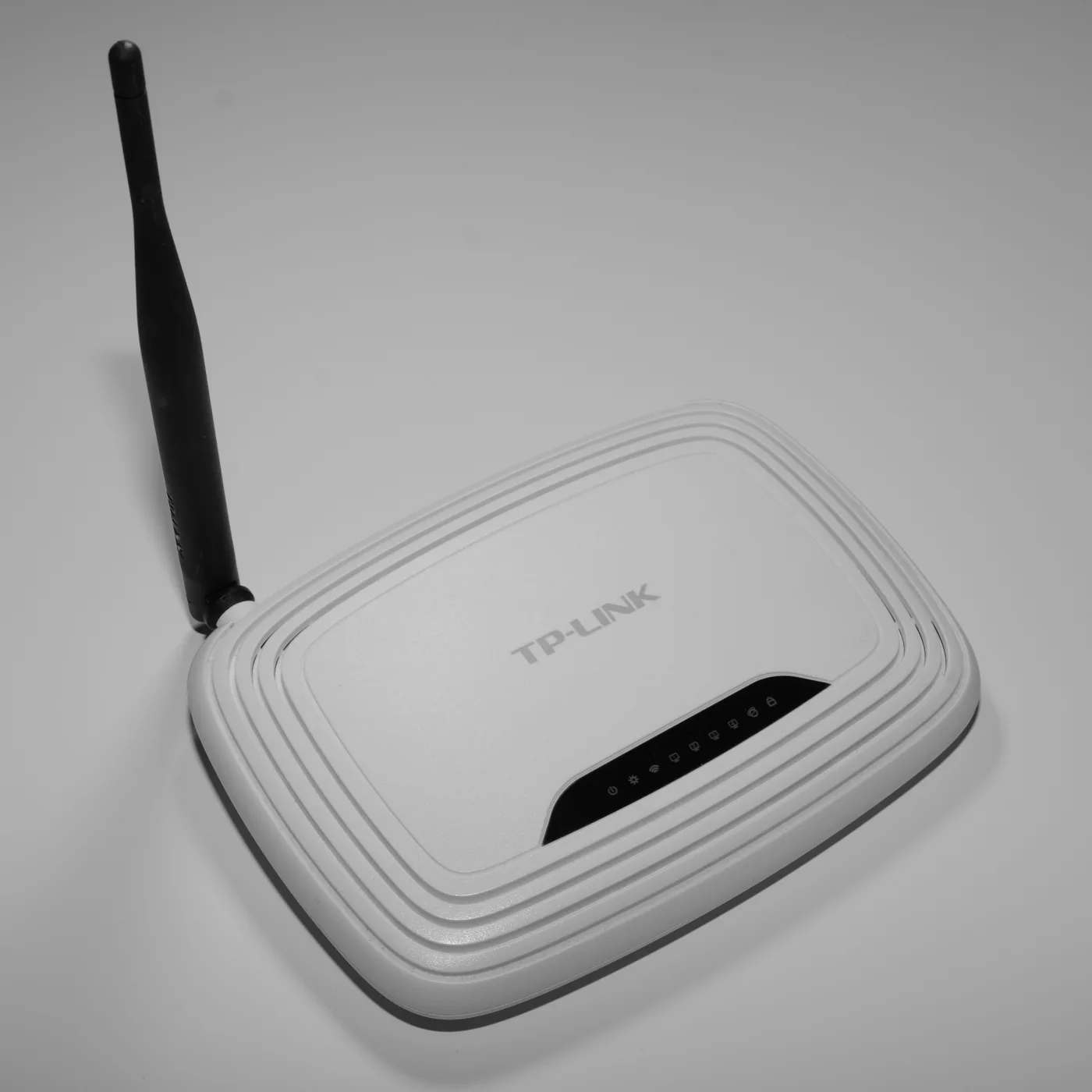
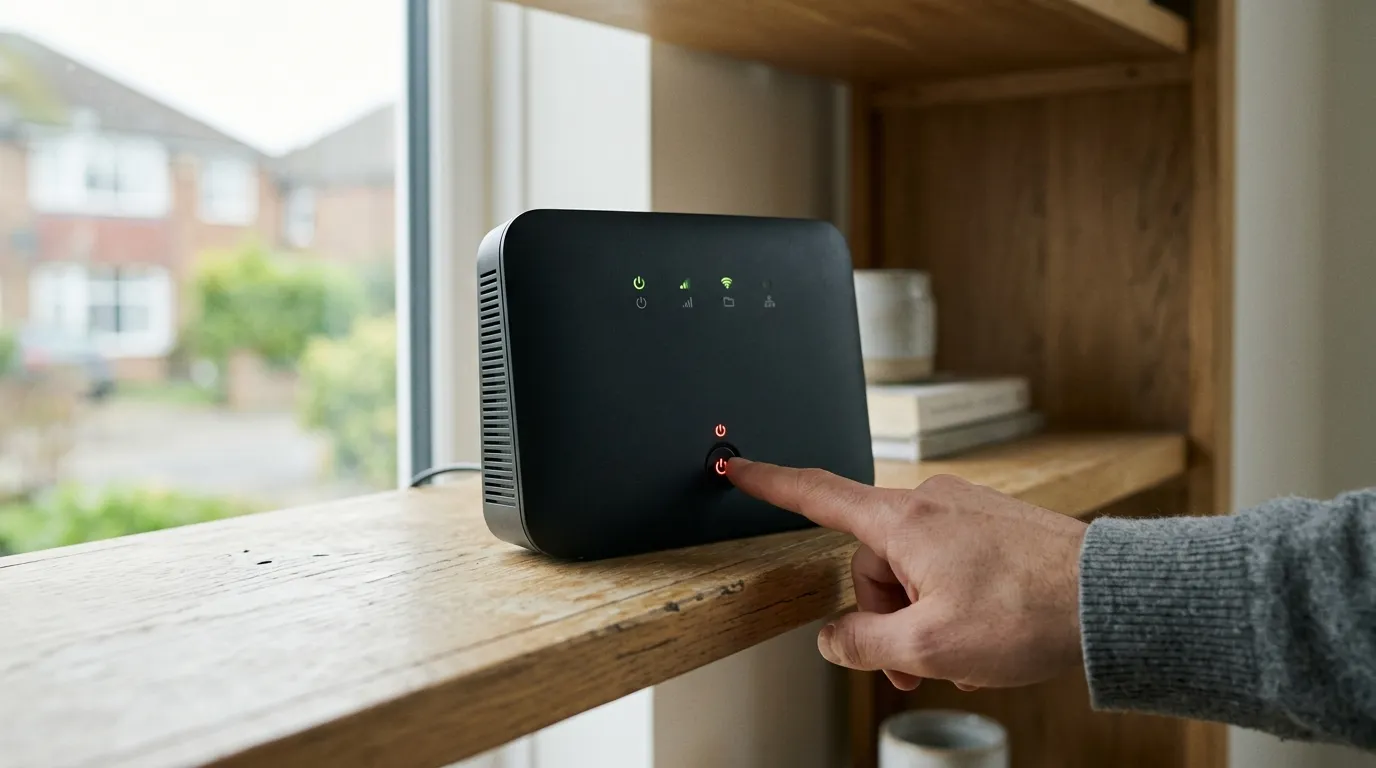
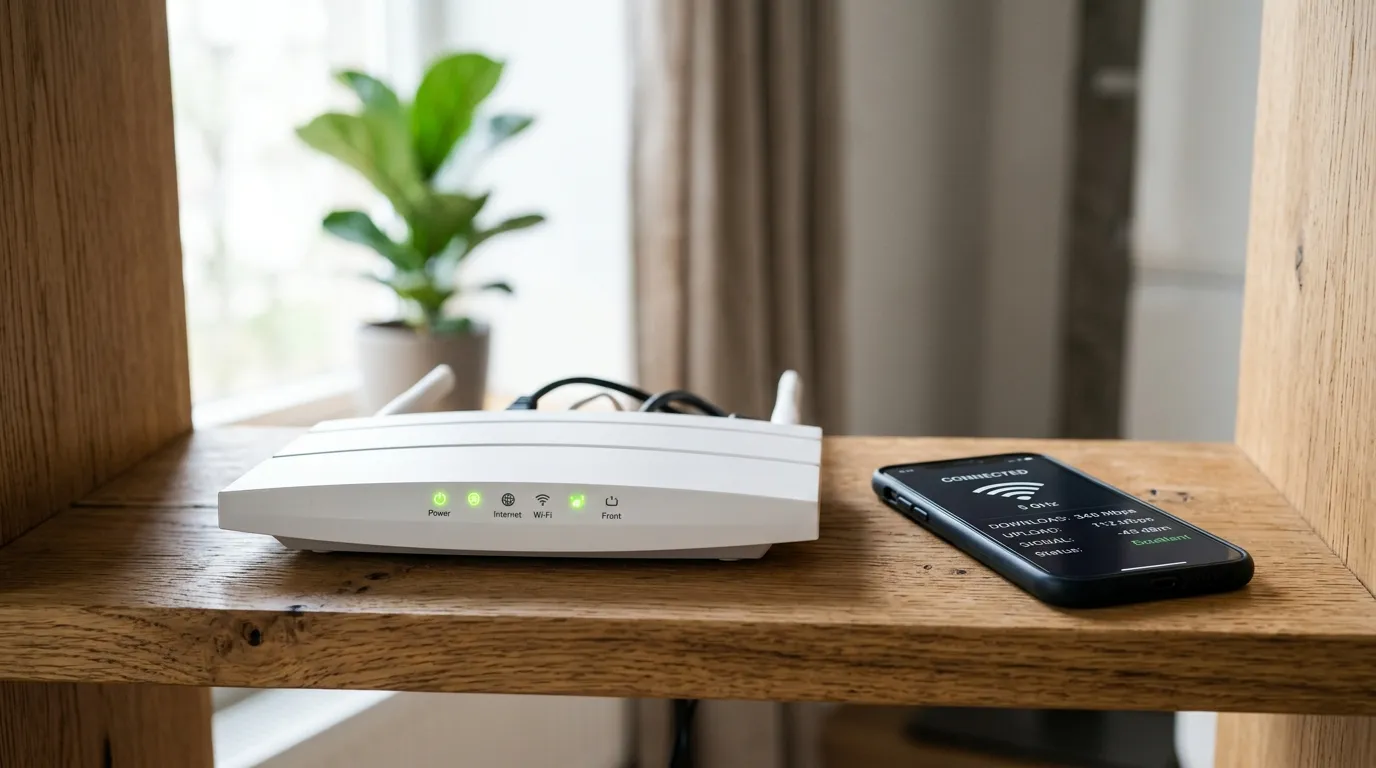
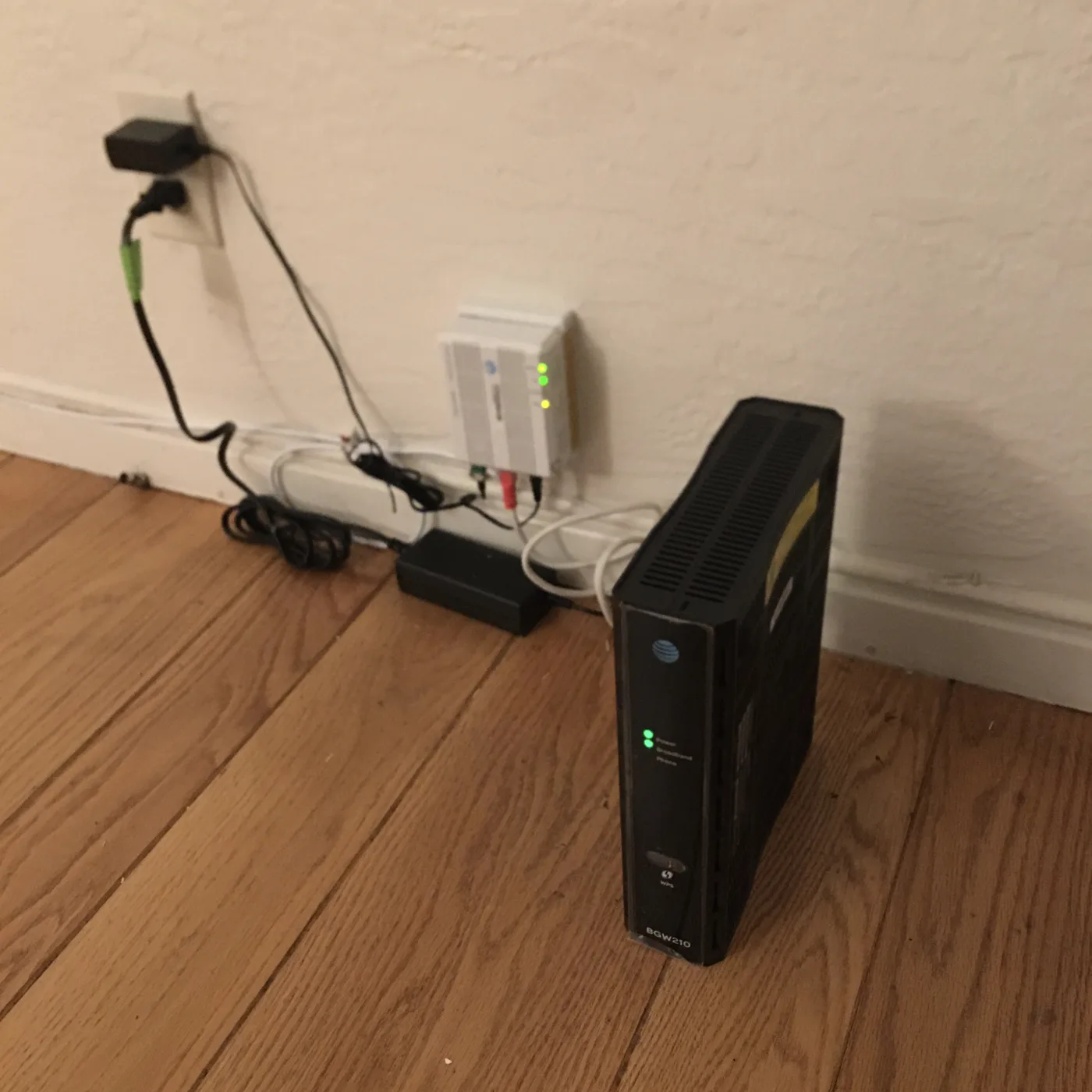
Check the lights on your router. A steady broadband or DSL light (often green or blue) means your line is in sync. A red, flashing, or off broadband light points to a line fault, in which case the fix is your provider, not your PC.
Step 1: Check for a broadband outage
There is no point resetting adapters if the fault is on your provider’s network. Check your ISP’s official service status page first.
- BT: bt.com/help/check-service-status
- Sky: sky.com/help/servicestatus
- Virgin Media: check the Virgin Media service status page or the Connect app
- Most providers: a postcode-based status check, plus an app that can reboot the hub remotely
If your provider confirms a fault in your area, there is nothing to fix at home. Note the reference and wait for the estimated restore time. You can also report a fault through the official line for your provider.
Step 2: Power cycle the modem and router
This clears the most common glitches and forces a fresh connection to your provider.
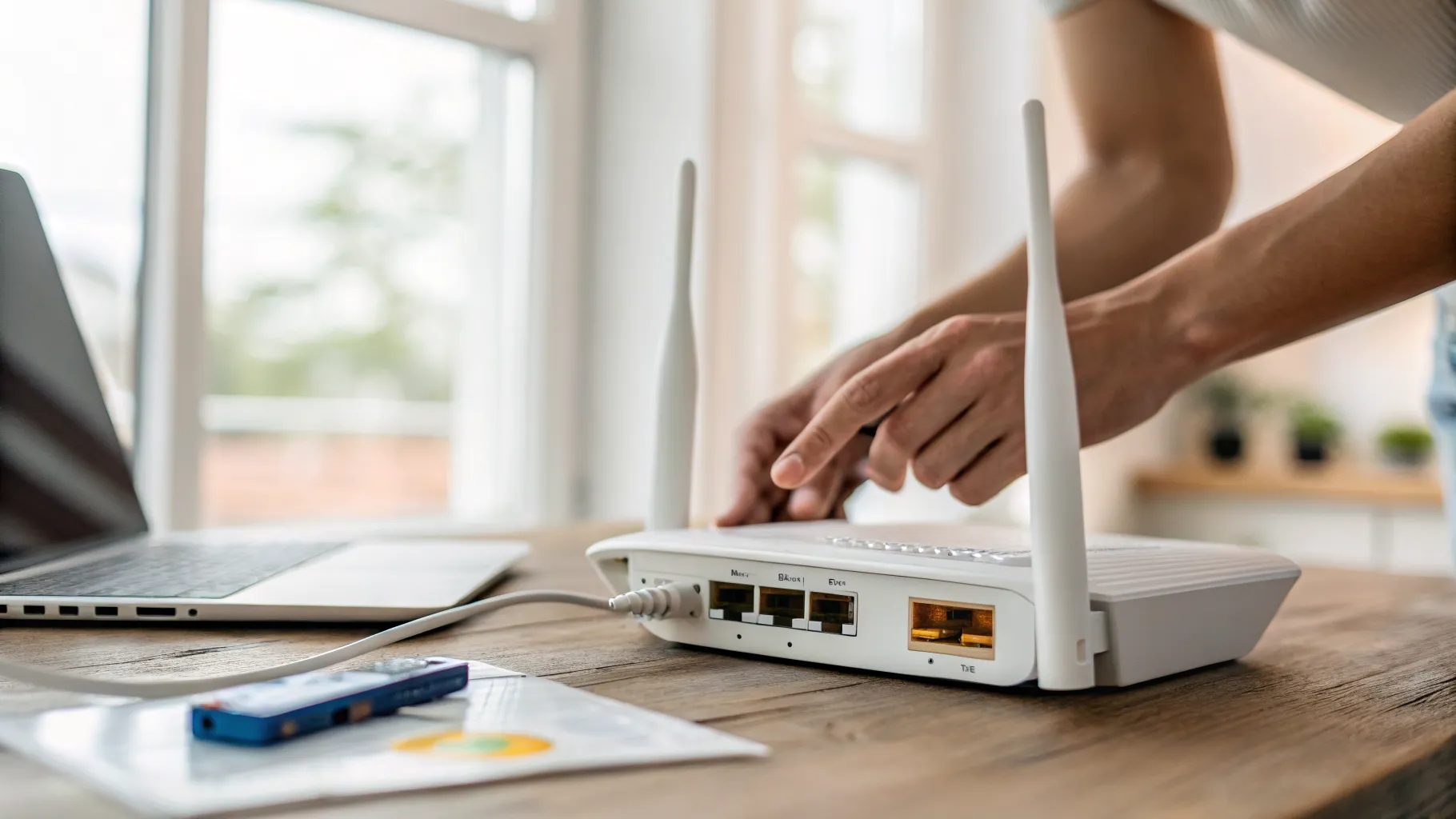
- Unplug the power from your router (and separate modem, if you have one).
- Wait at least 30 seconds. This matters, it lets the line drop fully and the provider release the old session.
- Plug the modem back in first and wait for its lights to settle.
- Plug the router back in and give it two to three minutes to fully sync.
Reboot, do not factory reset. A factory reset wipes your Wi-Fi name, password and any custom settings, and you rarely need it for this problem.
Step 3: Check the cable and the right port
A wired link that reports “connected” can still be running on a damaged cable or plugged into the wrong socket.
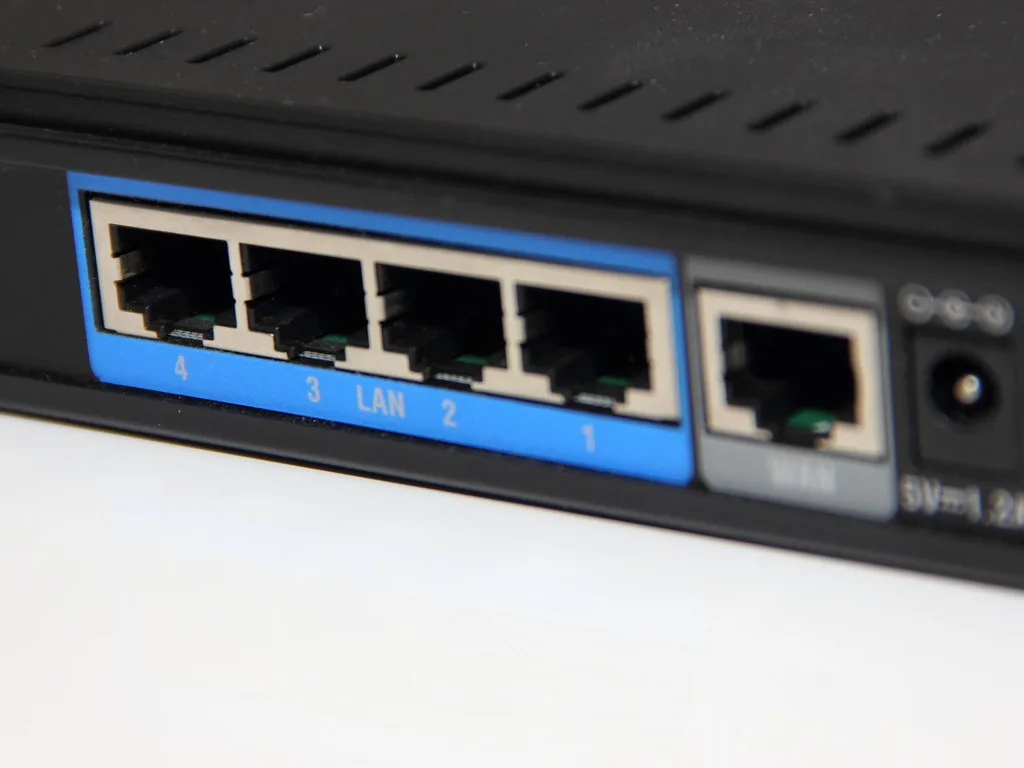
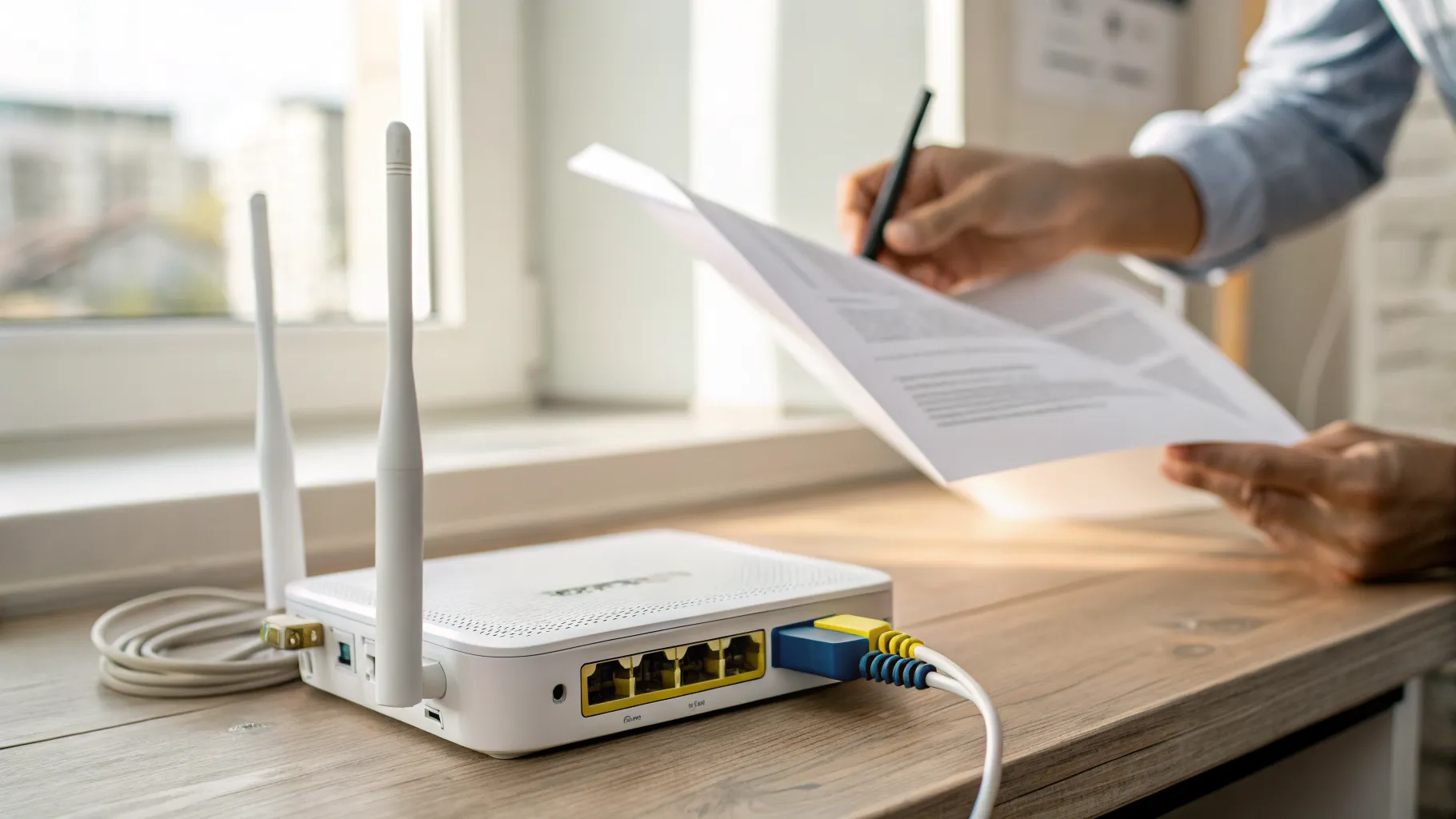
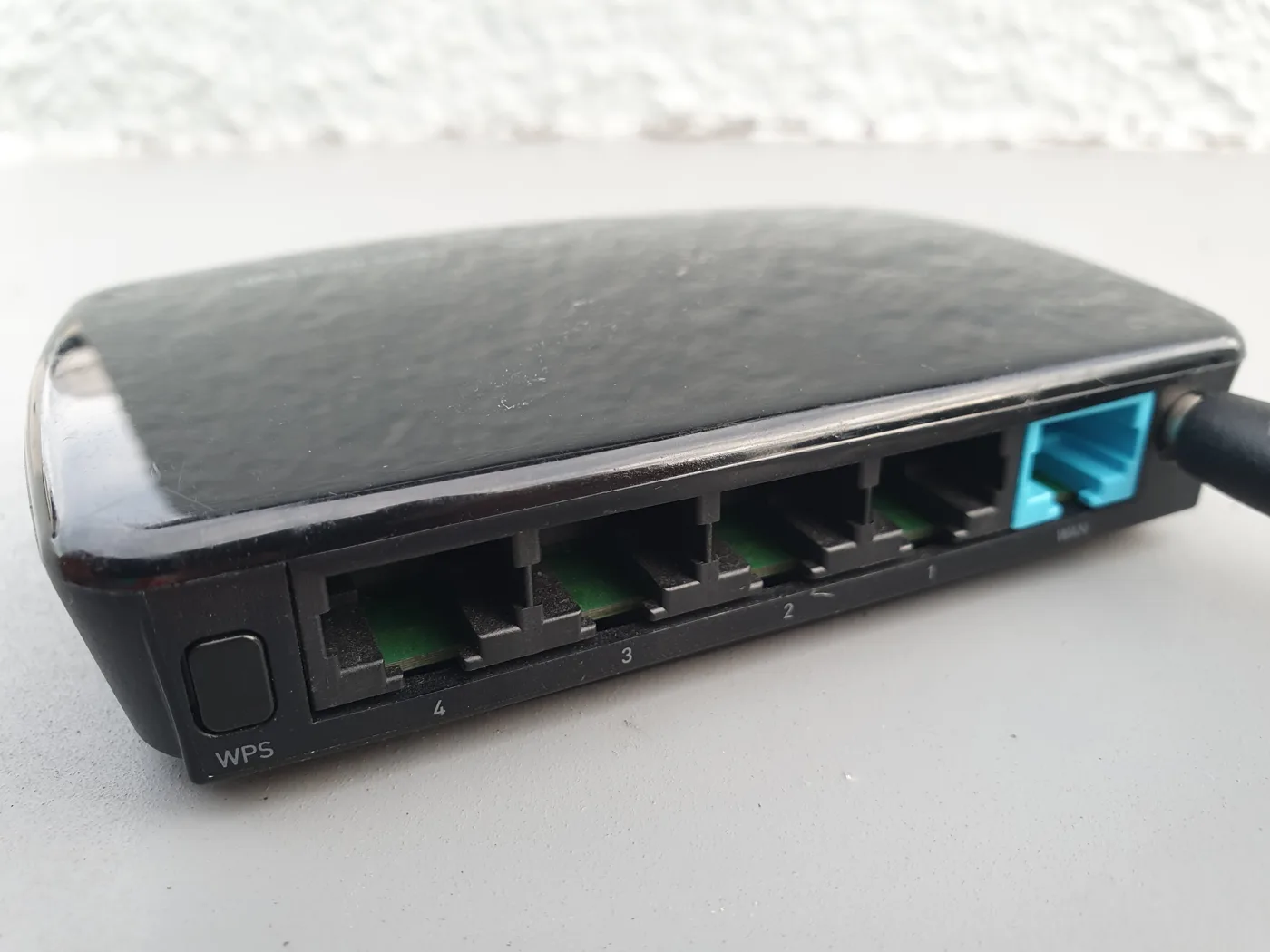
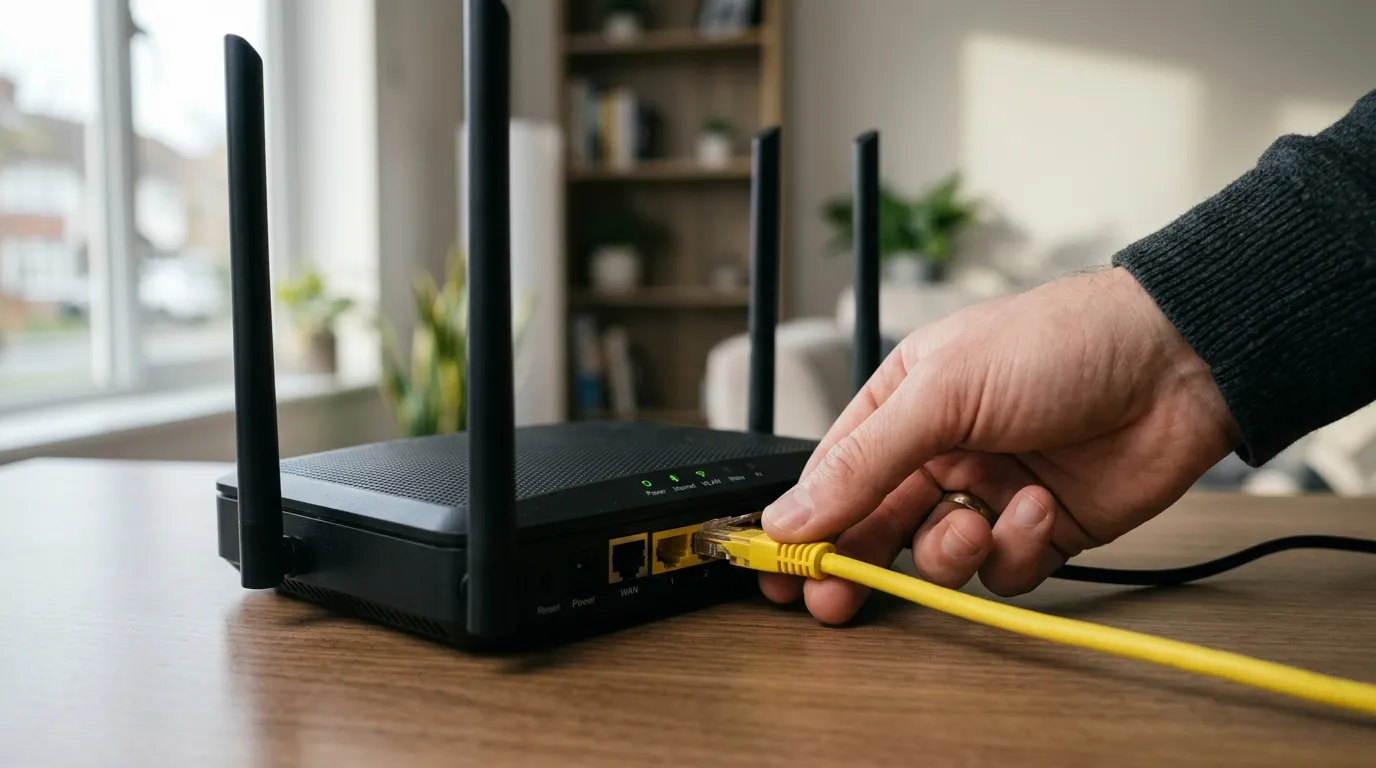
- Use a LAN port, not the WAN/Internet port. On the router, the single, often colour-coded “Internet” or “WAN” port is only for the incoming line from your modem or wall socket. Your computer must go into one of the numbered LAN ports. Microsoft flags this exact mistake in its Ethernet troubleshooting guide.
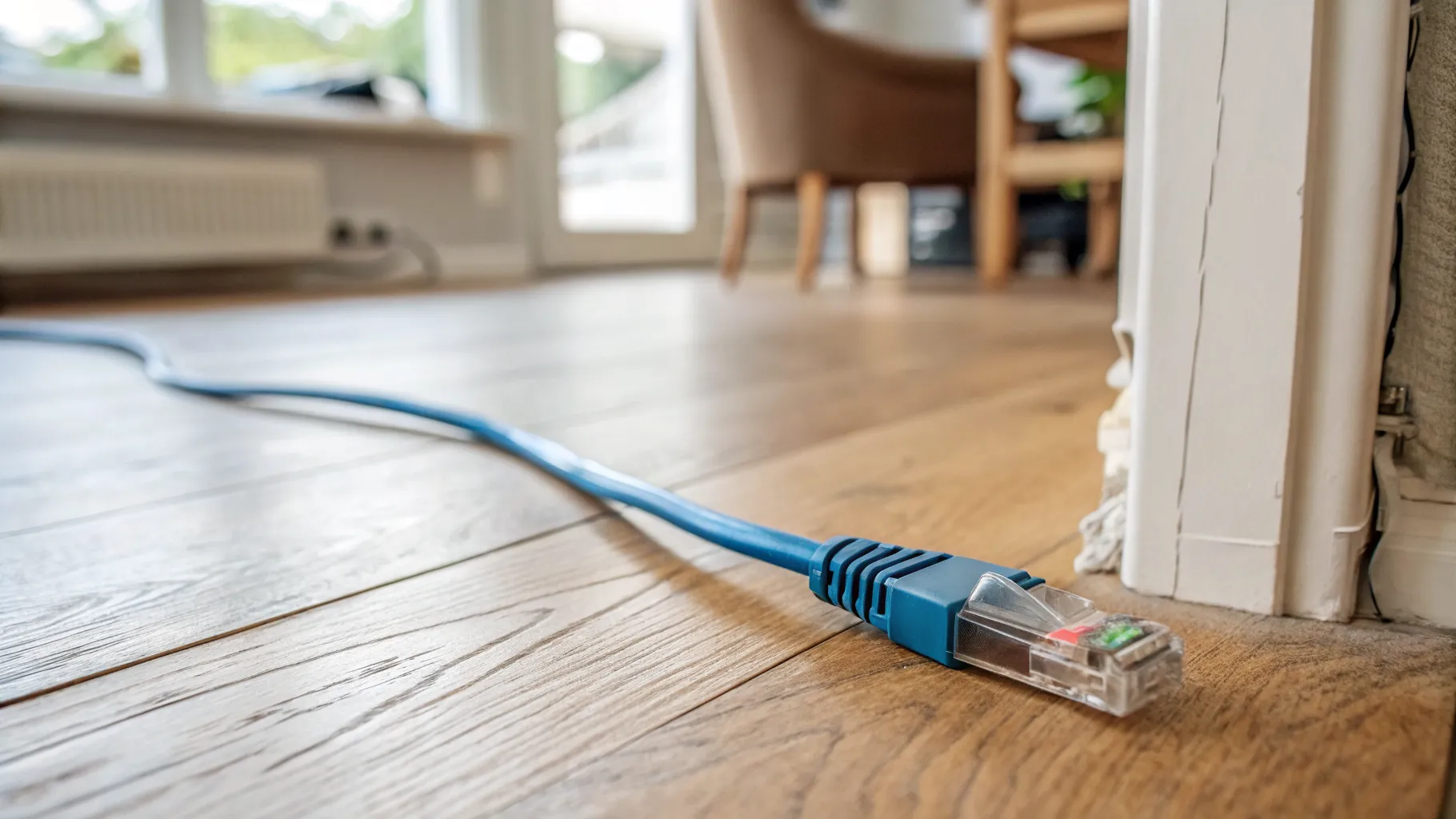
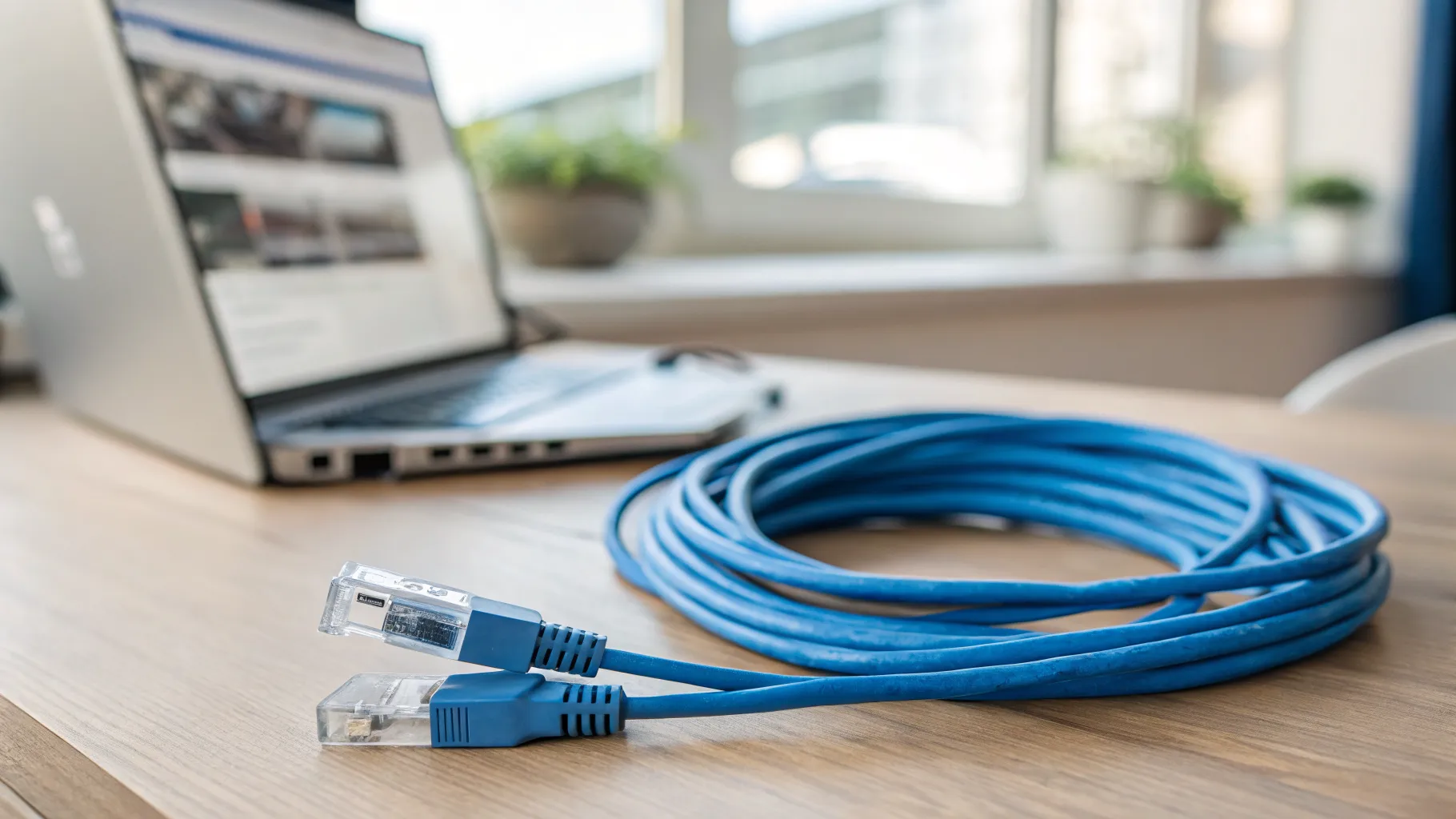
- Swap the cable. A bent pin or a kinked cable can pass enough signal to show “connected” while dropping data. Try a known-good lead.
- Try a different LAN port on the router to rule out a dead socket.
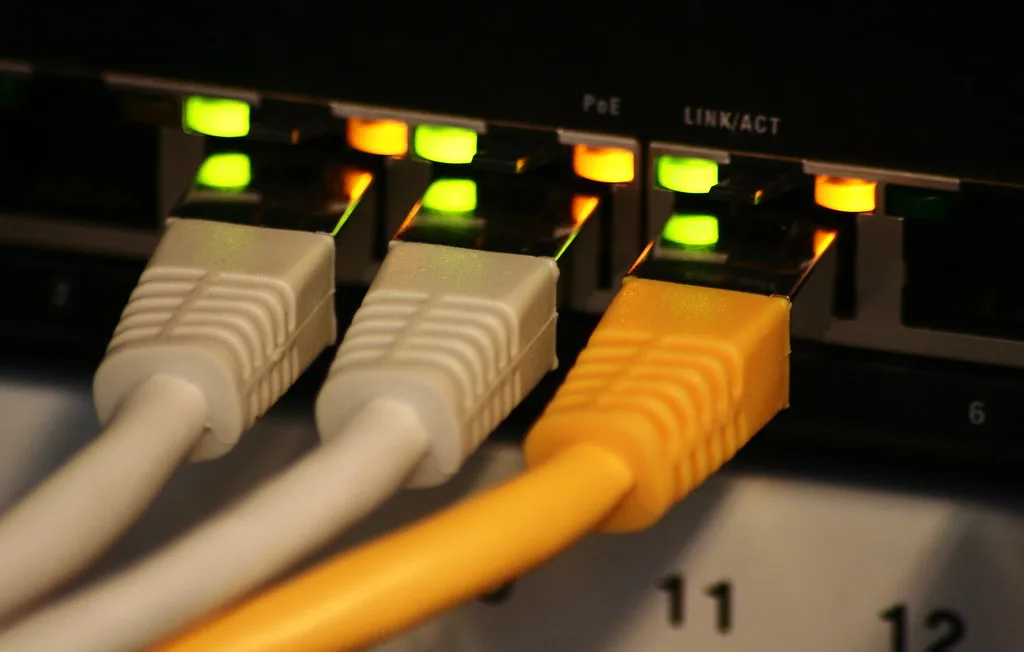
- Check the link lights on the network port itself. Both the router port and the computer port should show a lit or blinking LED.
Step 4: Fix the IP address (the most common software cause)
When Ethernet says connected but no internet on a single Windows machine, the usual culprit is a failed DHCP handshake. Your computer never received a proper IP address from the router and assigned itself one instead.
The tell-tale sign is an address starting 169.254 (Windows) or a “self-assigned IP” warning (macOS). That range is link-local only. It cannot reach your router’s gateway or the wider internet, so traffic goes nowhere.
On Windows, open Command Prompt as administrator and run these in order:
ipconfig /release
ipconfig /renew
ipconfig /flushdns
netsh winsock reset
netsh int ip reset
Restart the PC after the last two commands. Run ipconfig again and check that your IPv4 address now starts with something like 192.168.x.x and lists a Default Gateway. If it does, you should be back online.
On macOS, go to System Settings > Network > Ethernet > Details (or Advanced) > TCP/IP and click Renew DHCP Lease. Confirm “Configure IPv4” is set to “Using DHCP”. If it still shows a self-assigned address, create a new network location, then renew the lease again.
Step 5: Test or fix DNS
If your IP address looks correct and you can ping a numeric address but websites will not load by name, the fault is DNS, the system that turns a web address into an IP number.
Quick test on Windows: run ping 1.1.1.1. If that replies but ping bbc.co.uk fails, DNS is your problem. Switching to a reliable public resolver fixes it.
| Provider | Primary | Secondary |
|---|---|---|
| Cloudflare | 1.1.1.1 | 1.0.0.1 |
| 8.8.8.8 | 8.8.4.4 |
Set these in your adapter’s IPv4 properties (Windows) or under Network > DNS (macOS), following the official Cloudflare 1.1.1.1 setup guide if you want step-by-step screens. Apply the change, then run ipconfig /flushdns on Windows so old lookups are cleared.
Step 6: Update or reinstall the network driver
A corrupted or outdated Ethernet driver can hold a “connected” link open while passing no data.
- Open Device Manager (right-click Start > Device Manager).
- Expand Network adapters.
- Right-click your Ethernet adapter and choose Uninstall device.
- Restart the PC. Windows reinstalls the driver automatically on boot.
If you recently updated Windows or the driver and the fault started then, use “Roll Back Driver” on the same Properties screen instead.
Step 7: Run the network reset (last resort on the PC)
If nothing above works, reset the whole network stack. This removes and reinstalls every adapter and returns networking components to default, so you will need to re-enter Wi-Fi passwords afterwards.
On Windows: Settings > Network & internet > Advanced network settings > Network reset > Reset now. The PC restarts automatically.
If a full PC network reset still leaves you with Ethernet connected but no internet, and other devices are also offline, the fault is upstream. Move on to your router and line.
Comparison: which fix matches your symptom
| Symptom | Likely cause | Go to |
|---|---|---|
| Whole house offline, red broadband light | Line fault or outage | Steps 1 and 2 |
| Only one PC offline, IP starts 169.254 | Failed DHCP / no IP | Step 4 |
| Can ping 1.1.1.1 but no websites load | DNS failure | Step 5 |
| Worked yesterday, started after an update | Driver problem | Step 6 |
| “Connected” but link lights are off | Cable or wrong port | Step 3 |
When to call your provider
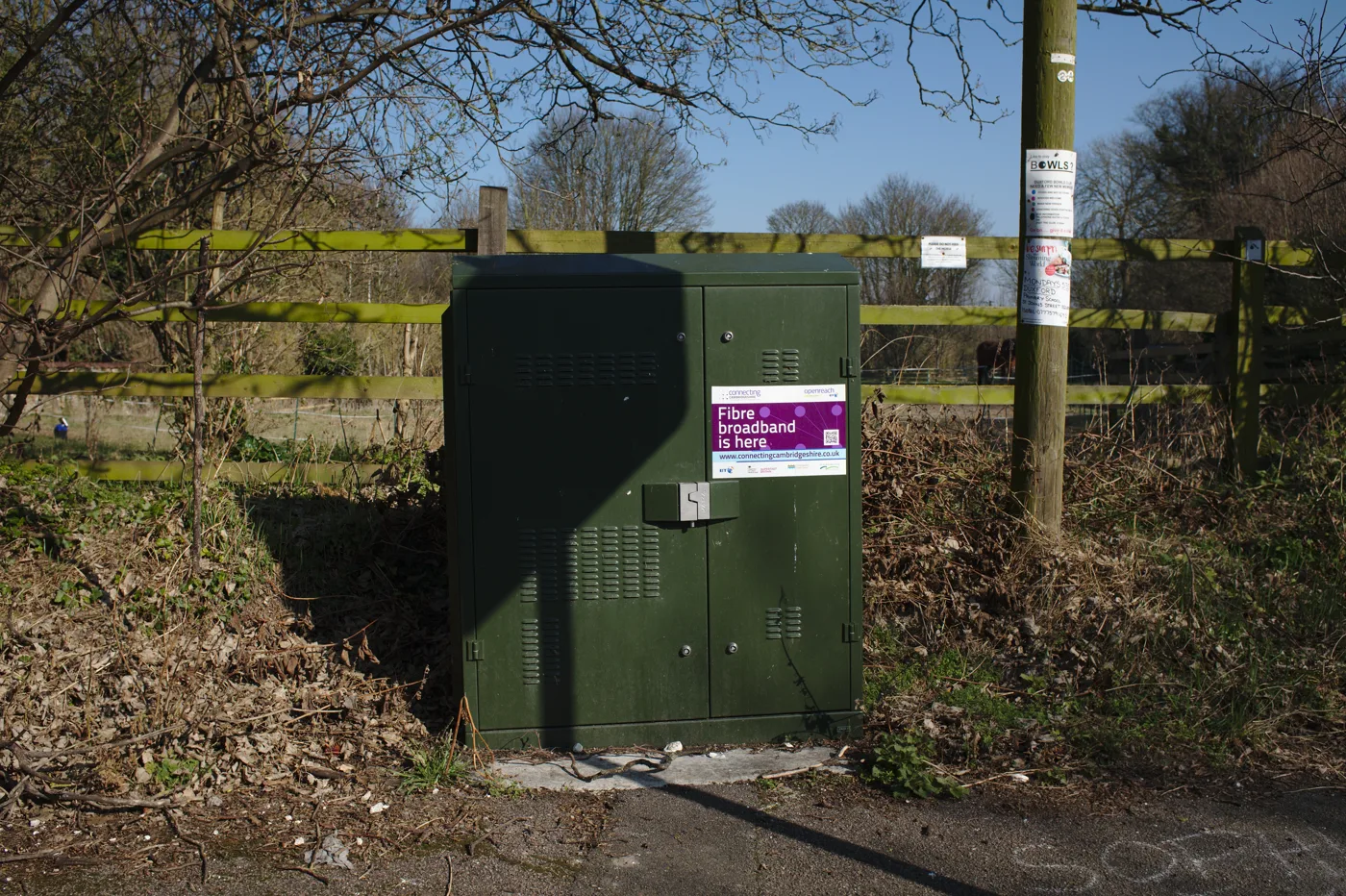
Contact your broadband provider if the broadband light stays red after a reboot, if the official status page shows no fault but multiple devices still cannot connect, or if you have worked through every step here without success. Have your line tested. A provider can run a remote line check and dispatch an Openreach engineer if the fault is on the physical line. If you rent your router from the provider and it is years old, ask whether a replacement hub is due.
For wider connection problems beyond a wired link, see our guide on Wi-Fi connected but no internet, and if your speeds are the real issue rather than a dead connection, our slow broadband troubleshooting checklist covers that.
Frequently asked questions
Why does my Ethernet say “connected” but I still have no internet? “Connected” only confirms a working physical link between your computer and the router. It says nothing about whether your computer has a valid IP address, working DNS, or whether the router itself can reach your provider. The break is almost always one of those three further up the chain, not the cable.
What does a 169.254 IP address mean? It means your computer asked the router for an address through DHCP and got no reply, so Windows assigned itself a link-local address (macOS calls this “self-assigned”). That range cannot route to the internet. Releasing and renewing the address, or rebooting the router, usually fixes it.
Should I factory reset my router? Not as a first step. A reboot (power off, wait, power on) clears most faults without losing your settings. A factory reset wipes your Wi-Fi name, password and any custom configuration, so keep it as a last resort and only when your provider advises it.
My phone has internet but my PC connected by Ethernet does not. Why? Because the broadband line is clearly fine, the fault is local to that PC. Focus on its IP address, DNS and network driver (steps 4 to 6) rather than the router.
How do I know if it is a broadband outage and not my equipment? Check your provider’s official service status page using your postcode. If they confirm a fault in your area, the problem is on their network and home troubleshooting will not help.
Is a slow or intermittent connection the same problem? No. These steps target a connection that is up at the link level but passes no traffic. A connection that loads pages slowly or drops in and out is a separate issue, usually congestion, line quality or interference, and needs a different approach.